How to Create a Wi-Fi QR Code That Connects on the First Scan
A Wi-Fi QR code is plain text that tells a phone which network to join and what password to use. Getting the encryption type and a few special characters right is the difference between a code that connects instantly and one that silently fails.
By PureTools Editorial TeamUpdated 7 min read
What a Wi-Fi QR code actually contains
Wi-Fi codes follow a format defined by the Wi-Fi Alliance QR Code specification. It is a short, semicolon-separated string, not a URL, which is why scanning one opens the connection dialog instead of a browser tab.
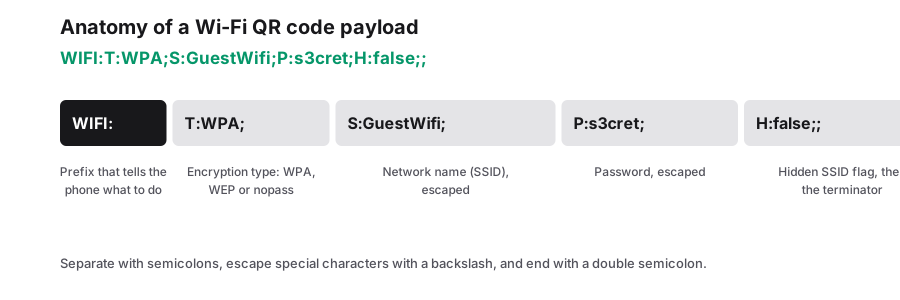
The full form looks like this:
- WIFI:T:WPA;S:GuestNetwork;P:password123;H:false;;
- T is the authentication type: WPA (covers WPA and WPA2), WEP or NOPASS.
- S is the network name (SSID), exactly as it is broadcast, including case.
- P is the password. It is case sensitive.
- H marks a hidden network. Use true only if the SSID really is not broadcast.
- The string always ends with two semicolons followed by a comma-free terminator, so end it with ;;.
Which encryption label to pick
| Your router setting | Value for T | Notes |
|---|---|---|
| WPA2-Personal (AES) | WPA | The most common home setting. Android reads it correctly. |
| WPA3-Personal | WPA | Most current phones connect, but older devices may need a WPA2 mixed mode. |
| WPA/WPA2 mixed | WPA | Safest choice for mixed fleets of guest devices. |
| Open network (no password) | NOPASS | Leave P empty. Common for public hotspots. |
| WEP | WEP | Deprecated and insecure. Replace the router setting rather than using this. |
Special characters that break Wi-Fi codes
Backslashes, semicolons, commas, double quotes and colons are reserved by the format. Escape them with a leading backslash: a password containing a semicolon becomes \; and a literal backslash becomes \\.
If a code fails only on some phones, the password is usually the reason. The quickest fix is to set a guest password made of letters and numbers, which needs no escaping at all.
Why iPhone behaves differently from Android
Android cameras and Google Lens detect the Wi-Fi payload and offer to join the network straight away. iPhones historically did not do this from the stock Camera app, so on iOS the user is often taken to Settings with the network pre-filled, or a helper app is needed.
Two practical consequences: expect some guests on iPhone to need an extra step, and print the network name and password as plain text next to the code as a fallback. Never rely on the code alone when you do not control the devices scanning it.
Generate the code
- Open the Wi-Fi QR generator and type the SSID and password exactly as the router broadcasts them.
- Leave "hidden network" off unless you really need it.
- Keep error correction at M or higher and export SVG if you are sending the file to a print shop.
- Enlarge the quiet zone if the code will sit on a sign that people photograph from a distance.
Test before you put it on the wall
Scan with at least one Android and one iPhone, from a clean state, with Wi-Fi already enabled. Confirm the phone joins the network it should, not a similarly named one, and that the guest network really is isolated from your private LAN.
Replace or reprint codes whenever the password changes. A stale code is worse than no code: guests assume the network is broken and stop trusting printed signs.
Security notes worth reading
- A Wi-Fi QR code exposes the password to anyone who decodes the image, so only use it on networks you are willing to share.
- Never put your main home or office network on a poster. Create a guest SSID with its own password and client isolation.
- The code contains credentials, not a link, so it cannot be redirected later. That is a privacy benefit and a maintenance cost.
- Do not use WEP. If your router only offers WEP, it is due for replacement.
Frequently Asked Questions
Do Wi-Fi QR codes work on all phones?
Most modern Android phones join directly from the camera app. iPhones support it in recent iOS versions, but behaviour varies by model and region, so always print the network name and password as a fallback.
Is putting my Wi-Fi password in a QR code safe?
It is safe for a guest network you intend to share. Anyone who scans or photographs the code can read the credentials, so keep it off your private network and use client isolation on the guest SSID.
Why does my Wi-Fi QR code say incorrect password?
Usually a case difference, a trailing space or an unescaped special character such as ; or \ in the password. Re-enter the values exactly as the router has them, or switch to an alphanumeric guest password.
Can I change the network later without reprinting?
No. The credentials are encoded in the symbol itself. If you need to change a password centrally, you would have to use a hosted redirect service that returns a Wi-Fi configuration, which is exactly the kind of dependency static codes avoid.
Sources & further reading
About the author — PureTools Editorial Team
QR and barcode documentation
The PureTools team writes and maintains the guides on this site. Every page is checked against the published symbology specifications before it is updated, and corrections are welcome by email.
Editorial policy and corrections