How to use the Location QR Code generator
- 1
Enter coordinates or an address
Paste the latitude and longitude if you have them, from the Maps place page rather than a raw GPS readout. Fill only the address line if you do not, and write it the way it appears on the map.
- 2
Check which value the code used
A number in both coordinate fields means the address is ignored. If you wanted the address search instead, clear the coordinate fields before downloading.
- 3
Walk the route once
Print a proof, stick it where the sign will live, and scan it from the street. Then confirm the pin sits on the entrance rather than the middle of the block.
Features
- Accepts either an address line or a latitude and longitude pair
- Coordinates win whenever both fields hold a number, so a precise pin beats a fuzzy street match
- Outputs the documented Google Maps URL API form, which both mobile platforms open
- Six decimal places on a coordinate is roughly 11 cm, enough for a gate or a trail junction
- Print-ready SVG and PNG, generated in your browser with no sign-up
What goes into the query
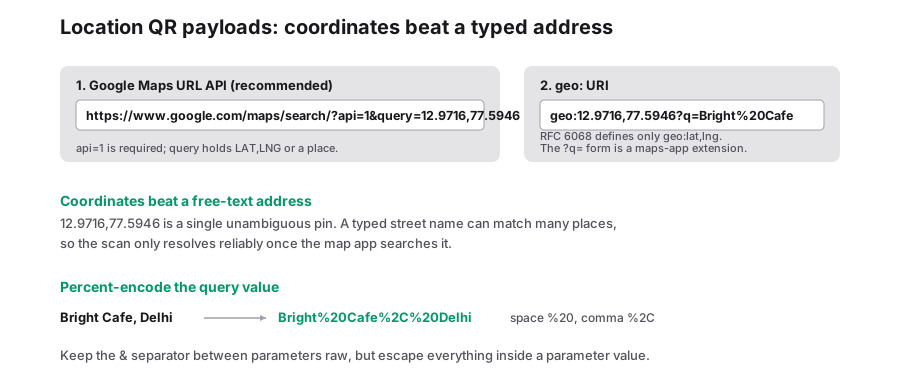
The code carries one line of text: a Google Maps search URL, with your value written into the query parameter and URL-encoded so spaces and commas survive the trip. That form comes from the Google Maps URI and URL API, where a single query accepts a place name, a street address or a coordinate pair, and it is the reason the same printed square behaves the same on an iPhone and on an Android phone.
Which of your inputs becomes the query depends on how the two coordinate fields parse. When latitude and longitude both look like numbers, the query is written as the pair, "12.9716,77.5947", and the address field is not used at all. When either coordinate field is blank, or holds anything that is not a plain number, the address string takes over as the query and Maps decides what it matches.
The check is on shape, not on sense. A latitude of 95 passes the number test and gets encoded happily, and Maps will do something odd with it at the other end. So the pair has to be right before you print: correct hemispheres, a minus sign for anything west of Greenwich, and latitude first, because a swapped pair still produces a valid-looking pin, just on the wrong side of the world.
| You enter | The query in the code becomes | What the phone shows |
|---|---|---|
| Latitude 12.9716, longitude 77.5947, plus an address | 12.9716%2C77.5947 | One pin at those coordinates; the address text is discarded |
| Coordinates blank, address "14 Marine Drive" | 14%20Marine%20Drive | A Maps search for that string, and the best match wins |
| Latitude "12.9716 N", address filled | the address string | A trailing letter fails the number check, so the address is used |
| Everything left empty | a sample coordinate pair | A placeholder pin. Never print the preview as-is |
Why a Maps URL and not a geo: link
There is a tidier option on paper. RFC 6068 defines the geo URI scheme, so a coordinate can be written as geo:12.9716,77.5947 with no web address attached, and that is what a lot of location code generators emit. It is shorter, it is a real standard, and on Android the camera hands it to Maps or a navigation app without complaint.
The problem is the iPhone. Apple camera software has never treated a geo link the way Android does, so an iPhone user at your sign can end up staring at a string of numbers instead of a map. The Maps search URL is an ordinary link, so both platforms open it in a browser or the Maps app and land on the same pin. That is the trade this tool makes: guaranteed behaviour on both platforms, at the cost of a longer payload and a denser pattern.
The other half of the trade is connectivity. A Maps URL needs a data connection to resolve, while a geo hand-off can be picked up by an offline map app. For most signage that difference never shows, because a phone that scans a code is a phone with a signal. In a car park basement, a rural trailhead or a basement office, print the address and the coordinates in plain text under the code as well, so the sign still works when the network does not.
How much precision a pin needs
Coordinates are a way of promising accuracy, and the number of decimal places is the promise. The grid is roughly this: one decimal place is about eleven kilometres, two is about 1.1 km, three is about 110 m, four is about 11 m, five is about 1.1 m and six is about eleven centimetres. The rule of thumb holds near mid latitudes, where the distance covered by a degree of longitude is closest to the textbook figure.
- Copy coordinates out of the Maps place page rather than reading them off a handset, because the app has already done the rounding for you.
- For a postal address, four decimals on a nearby pin usually beats an exact coordinate of the wrong entrance, so check which door you are pointing at.
- Extra decimals cost characters, and characters cost density. Stop at the precision you can defend.
| Decimal places | Rough ground coverage | Fit for |
|---|---|---|
| 2 (12.97) | About 1.1 km | Naming a district or a suburb in a flyer |
| 4 (12.9716) | About 11 m | A shopfront, a venue entrance, a building |
| 5 (12.97159) | About 1.1 m | A specific door on a long facade |
| 6 (12.971592) | About 11 cm | A delivery gate, a trail junction, a marker on a headstone |
Where location codes earn their keep
- Estate agent boards and open-house cards, where the postcode alone drops people at the wrong end of the street.
- Market stalls, food trucks and popup counters that have no fixed postal address but do have a permanent GPS position.
- Delivery and pickup points: the gate that is not the address, the loading bay behind the shop, the farm track entrance.
- Wedding and event stationery, so guests find the correct entrance at a large hall or an estate with several drives.
- Trailheads, cemetery plots, advertising posters and parking bays, anywhere a description is longer than a scan.
Frequently Asked Questions
Does the code open turn-by-turn directions?
Not on its own. The URL written here is the Maps search form, so the phone opens a pin and the customer taps Directions from there. A code that starts navigation straight away, or that pre-selects a travel mode, is a different Maps URL, and the place to build that is the URL QR code type, where you paste the link exactly as you made it.
Can I encode a share link from the Maps app instead?
Yes, but use the URL code for that rather than this tool. Google Maps share links already point at a specific place, and the URL type carries them character for character. The location type always rebuilds a search query from the address or coordinates you enter, so a share link typed into it would be treated as search text.
Will the pin still show if the customer has no data?
No. A Maps URL has to be fetched, so scanning without a connection gives a failed page rather than a stored location. Print the address in words under the code, and for remote sites print the coordinates too, since anyone with a downloaded offline map can search those numbers directly.
Related generators
- Free QR Code Generator for Links, WiFi, Contacts and MoreTurn any website address into a scannable QR code in seconds, then style it with your colors and logo. The same tool also makes WiFi, contact, email, phone, event, location, UPI payment and SMS codes.
- URL QR Code GeneratorEncode a web address as a QR code that stays working forever, because the link lives in the pattern itself rather than on a server we control.
- WiFi QR Code Generator for Guest NetworksGuests point their camera at the code and join your network instantly. No more spelling out long passwords at the counter.
- Turn Any Plain Text Into a QR CodeType a message, a code or short instructions and get a QR code that shows the text right on the scanner's screen. No website or connection required.